Tuesday, 16 March 2010

Windows Phone 7 Series and OData / WCF Data Services feeds

This post has moved to http://wishfulcode.com/2010/03/16/windows-phone-7-series-and-odata-wcf-data-services-feeds/

Whilst the Windows Phone Series 7 development tools were only released yesterday, you can tell that various other Microsoft teams have been working hard to make sure their technologies are useable in the new environment.

The first thing I attempted to do on the phone was build some apps which interacted with their data through WCF Data Services. I found it wasn't yet as simple as the normal .net experience, but you can tell that's where things are headed.

Things to keep in mind when attempting to consume oData services on a Windows Phone 7 Series silverlight app:
  • At dev time, you won't for now be able to simply "Add Service Reference" to your data service. You'll have to grab the preview client tools (which you should reference from your consuming silverlight library and the application itself). You'll then need to manually generate the classes for the client.
  • The rest of the experience is pretty similar to desktop Silverlight apps - you have to code in an asynchronous manner.
  • Remember that your app will be running inside a virtual machine (if using the emulator), and so won't be able to access Urls on your dev machine as local. Instead, you can reference your development machine via it's name.
Once up and running, it'll be a very quick, simple and powerful way to reach your data, and the included best-practice templates for the phone projects look like we're going in a great direction.

Sunday, 14 March 2010

Windows Mobile has adjusted your clock


I've had a lot of Windows Mobile phones over the years, and have always loved the platform. When there was a bit of a pause in new features, I decided to go in exile and test out a different platform for a while, so I got an iPhone. Apart from the app store, it's not been a great experience! Especially this morning, after being used to Windows Mobile letting you know that's the clock has been automatically adjusted for daylight savings time - I realised that when I woke up and saw it said 7:00, there was no way to know if that was the old or correct time zone...

Saturday, 6 March 2010

Azure: Deploying ASP.net websites instead of web application projects as web roles

This post has moved to http://wishfulcode.com/2010/03/06/azure-deploying-asp-net-websites-instead-of-web-application-projects-as-web-roles/

The Azure tools for Visual Studio have great support for creating web roles out of Web Application projects, but no built-in support for simple websites (that is, asp.net sites that are compiled at runtime). There are many scenerios where not needing to have a Web Application project are going to be the right decision for development and production, and the good news is that any IIS-servable directory can be packaged/deployed using simple commands from the Azure SDK.

The process of taking projects / code / files from from local to cloud with Azure is to:
  1. Prepare a local directory with a ready-to-run output of the application's build.
  2. Prepare a service definiton file (describes the roles to package).
  3. Package into an Azure package file using CSPack.
  4. Upload to production or staging environments on Azure, alongside a service configuration file (determines how many instances and what kinds of storage are available to the roles).
The Visual Studio add-in can handle this for web roles using website application projects, but we have to do this manually for website projects.

Preparing the project

The best folder structure for working locally is to create a parent directory with each role as a subdirectory. The service definition/configuration and package files can then be stored in the parent. So here I've created a the default Web Site from Visual studio at TestWebsite1\WebRole1 and just to prove that we don't need to add/modify anything from this default set-up I haven't changed anything, except to add a hello-world default.aspx:
<h1>Hello World</h1>
    <p><b><%= Environment.MachineName %></b> running <i><%=Environment.OSVersion.VersionString %></i> on <i><%=DateTime.Now.ToString("s") %></i></p>

Packaging the project for Azure

First off, we need to create a service definiton file, which just describes which kind of roles are in our application, and what their requirements are. In this case, we only have a single WebRole (and we'll give it some storage for fun), and I've called the file ServiceDefinition.csdef:
<?xml version="1.0" encoding="utf-8"?>
<ServiceDefinition name="Azure1_umbraco" xmlns="http://schemas.microsoft.com/ServiceHosting/2008/10/ServiceDefinition">
  <WebRole name="WebRole1">
    <InputEndpoints>
      <InputEndpoint name="HttpIn" protocol="http" port="80" />
    </InputEndpoints>
    <ConfigurationSettings>
      <Setting name="DiagnosticsConnectionString" />
    </ConfigurationSettings>
    <LocalResources>
      <LocalStorage name="LocalStorage1" cleanOnRoleRecycle="false" sizeInMB="100" />
    </LocalResources>
  </WebRole>
</ServiceDefinition>

Next we use the CSPack tool to package up the site in to a single file (testwebsite1.cspkg) for upload to Azure. The tool will automatically look for the supporting files for each role under a directory with the role's name:
cspack ServiceDefinition.csdef /out:testwebsite1.cspkg

We'll also need to create a simple service configuration file (ServiceConfiguration.cscfg) which describes how many instances to give each role:
<?xml version="1.0"?>
<ServiceConfiguration serviceName="Azure1_umbraco" xmlns="http://schemas.microsoft.com/ServiceHosting/2008/10/ServiceConfiguration">
  <Role name="WebRole1">
    <Instances count="1" />
    <ConfigurationSettings>
      <Setting name="DiagnosticsConnectionString" value="UseDevelopmentStorage=true" />
    </ConfigurationSettings>
  </Role>
</ServiceConfiguration>

Deploying the website to Azure

Now that we've finished everything we need to do locally, we can move to the Azure online management tool, where we'll need to create a new Hosted Service. Once that's made, we select either the production or staging environment for the service and select Deploy.... All we need to do here is select the package and configuration files, and give the deployment a name:


Azure will spend some time uploading the package, after which your service will be in the Stopped state.

After clicking Run the site should be instantly available.

In a later post, you'll see why I wanted to make sure we could use a web deployment without requiring a Web Application project.

Friday, 5 March 2010

Azure: Investigating a developer's dream

This post has moved to http://wishfulcode.com/2010/03/05/azure-investigating-a-developers-dream/

In 2009, we decided we had to leave our current hosting contract and find a new provider. I started looking at alternatives to the traditional multi-year hosting contracts that had held us back at Condé Nast Digital for years, and in May I decided to test out if the myths about Amazon EC2 were true. Yes, it really did give you servers (windows in our case) at the click of a button... with a GUI and everything. The flexibility won me over, and the stability meant I couldn't turn back. By October we had moved our entire 15+ site portfolio to Amazon, serving millions of pages each day. And the first server I switched on is still running...

I quickly learnt that in order to benefit from the cloud (and by that, we mean Amazon's extensive data-centers and redundancy services) we had to move as many components of our applications as possible to the services provided by Amazon. So we moved all of our digital assets to the storage service, and we introduced our high-traffic sites to elastic load-balancing (instead of running our own HAProxy instance, which we're still doing for smaller sites).

At the end of the day though, these are all, by definition, simple services which still require you to not only manage the code and configuration of your application layer, but also manage the running and reliability of the server environment. As fun as that is (and no I'm not being sarcastic, I'm a geek) it takes up a lot of time when all I really want to be focusing on is developing new apps.

In steps Azure, which offers a fully managed scalable environment for an application - be it a website, web service, or task worker. It seems that it's reached a level of maturity where a middle ground has been achieved offering enough compatibility to ensure that if an app is following today's best practices, it'll most likely work on the Azure platform. The methodology is a little different - you set up applications as roles, and then configure instances to run those roles on. The configuration let's you select server capabilities and whether you want local, NTFS-compatible instance storage.

For someone who believes in the .net way of doing things, Azure sounds very comprehensive and exciting - being able to write both windows-service-style apps as well as websites, and have a very quick time from coding to large-scale deployment. As I investigate using Azure within a production development team for high-traffic sites, I'll be posting a series of best practices I find along the way, hopefully involving:
  • Which apps will and won't work in Azure, and creative ways we can get around any which won't.
  • What the best migration plan is for existing code and data.
  • How to effectively deploy: integration with development, build and staging processes. (We've only just completed putting in a great deployment process for our sites on windows on EC2, but hopefully the lessons learnt here will be transferrable.)
As it turns out, there's a rumour going around that RDP access will be enabled for Azure instances. I'm guessing (and hoping) though, that given how managed the Azure guest operating systems are at the moment, that even if this is enabled there will still be a big element of self-management within the platform.

The killer feature will be whether not only is there enough of a management API to match something like Amazon's, where you can for example turn hosting services on or off, but whether you can also use an API to fully manage your application's lifecycle including deployment and scalability. It does look like the potential is there...

Thursday, 4 March 2010

Realtime website traffic and application server monitoring with Amazon EC2 and Google Charts (via ASP.net)

This post has moved to http://wishfulcode.com/2010/03/04/realtime-website-traffic-and-application-server-monitoring-with-amazon-ec2-and-google-charts-via-asp-net/

Software products which analyse web site traffic patterns, like Google Analytics, are awesome. But they only measure client data and most of them do not provide realtime data. Server geeks like me have an in-built desire to see how much actual traffic is passing through web servers, and how the machines powering your application are performing.

If your servers are in Amazon's EC2 environment, then CloudWatch can provide statistics on CPU, I/O and Network via a web service call. The web service is quite complicated, but in simple terms you can provide a start date and end date, the period of each statistic and whether you want an average, maximum, minimum or sum from each period, as well as the metric you want to look at. For CPU, you likely want to take an average of a minute (will return 1440 data-points for a 24hr period - the maximum the web service will allow), or 10 minutes (a more manageable 140 data-points). The data is available for 14 days.
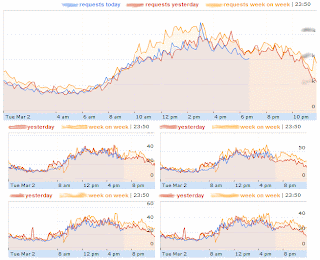
But how to make this data comprehensible? Enter Google Charts which, through their simple client-side API, provides a great way  to visualise this data.

When working with any statistical data sets, but especially with realtime data, it's good to have some data to compare to. Most useful in this situation is to have everything for the current day so far, then everything for yesterday (so we always have more than 24hrs worth of recent data), and then the data from the same day in the previous week. This way we can see at a glance if we're in a traffic or performance peak.

In the demo page I've built (screenshot on right), I retreive all the load balancers on an AWS account, and for each one display both the request traffic history, and the CPU history for each server in the load-balanced farm.

The code for this comes in three parts:
  1. Getting the data from CloudWatch (.net c#).
  2. Converting (and combining) the data to something we can pass to the front-end (JSON in this case).
  3. Calling the charts API in javascript with the data and configuration for each graph.
This test code could be labeled the 'TodayYesterdayLastWeek' demo, and you'll probably see why that's hard-coded in the code below. The C# code is fairly generic, and a class library could probably be made from it to wrap the rather complicated AWS SDK. In that it will take single or multiple days, and the required metrics as parameters, and retreive the neccessary simple data-points from CloudWatch:
protected static IEnumerable<IEnumerable<DataPoint>> GetLoadBalancerDataMultipleTimeSpans(string loadBalancerName, params DateTime[] days)
    {
        return days.Select(day => Get24HrPeriodRequestCountForELB(loadBalancerName, day, true, AnalyticsValueType.Sum));
    }

public static IEnumerable<DataPoint> Get24HrPeriodRequestCountForELB(string loadBalancerName, DateTime day, bool onlyTime, AnalyticsValueType valueType)
    {
        DateTime start = new DateTime(day.Year, day.Month, day.Day, 0, 0, 0);
        DateTime end = start.AddDays(01);

        var stats = CloudWatchClient.GetMetricStatistics(
                new GetMetricStatisticsRequest()
                    .WithStatistics(new[] { "Sum" }) //get me the sum
                    .WithStartTime(start.ToString("s")) //from 1 hour ago
                    .WithEndTime(end.ToString("s")) //until now
                    .WithDimensions(  //with load-balancer name x as dimension
                        new Dimension().WithName(CloudWatchDefaultDimensionsELB.LoadBalancerName.ToString()).WithValue(loadBalancerName)
                    )
                    .WithMeasureName(CloudWatchDefaultMetricELB.RequestCount.ToString()) //for the request count
                    .WithPeriod(600) //per x seconds
                    .WithNamespace("AWS/ELB")
                );

        return ToDataPoints(stats, onlyTime, valueType);
        
    }
Then, in the ASP.Net code, we can call these methods and output the results to the page, passing the data through to our
LoadTodayYesterdayLastWeekRequestChart(key,containerId, dataItems)
javascript function:
<%foreach (var loadBalancer in LoadBalancers)
  {
      var containerId = "RequestsDaily" + loadBalancer.LoadBalancerName;%>
          <!-- request chart-->
        <div style="width:640px;float:left;margin-left:20px;">
            <div style="width: 640px; height: 250px;" id="<%=containerId %>">
                <!-- requests chart -->
            </div>
        <!-- cpu charts -->
        <div style="">
   <% foreach (var instance in loadBalancer.Instances)
      {
          var instanceContainerId = "CPUDaily_" + loadBalancer.LoadBalancerName + "_" + instance.InstanceId; %>
         <div id="<%=instanceContainerId %>" style="width:300px;margin-left:10px;height:140px;float:left;">
            <!-- instance cpu chart -->
         </div>
         
          <!-- requests instance cpu client data -->
        <script type="text/javascript">
            LoadTodayYesterdayLastWeekCPUChart("<%=instance.InstanceId %>","<%=instanceContainerId %>" , [
                        <%= ToGoogleChartDatedDataTableRows(
                            GetCPUDataMultipleTimeSpans(
                                instance.InstanceId, 
                                    DateTime.Now,
                                    DateTime.Now.AddDays(-01),
                                    DateTime.Now.AddDays(-07)
                                        )
                                    )
                                %>
                        ]);
        </script>
  <%} %>
        </div>
            
        
        <!-- requests client data -->
        <script type="text/javascript">
            LoadTodayYesterdayLastWeekRequestChart("<%=loadBalancer.LoadBalancerName %> requests","<%=containerId %>",[
                        <%= ToGoogleChartDatedDataTableRows(
                            GetLoadBalancerDataMultipleTimeSpans(
                                loadBalancer.LoadBalancerName, 
                                    DateTime.Now,
                                    DateTime.Now.AddDays(-01),
                                    DateTime.Now.AddDays(-07)
                                        )
                                    )
                                %>
                        ]);
        </script>
        <!-- end data -->
        </div>
  <%} %>
 
If you built this in to an intranet template (which I've done to give the other teams visibility on their sites) you could add other servers with CloudWatch that are integral to your app, and maybe even add client-side data refreshing and the google-o-meter to give a quick red/green status update:

Since we're getting results to compare today's traffic to, we could build up some expected averages and working out wether we're in the low/high/spike traffic zones.

I should point out that there are a lot of great tools out there to manage your EC2 servers and analyse CloudWatch data. I personally love Ylastic as a way to share server tagging and management within a team. I created this tool as a way for my team to be able to view production statistics condensed and at-a-glance.

Download the sample code for this here. Be sure to change the configuration key/value lookup to whatever source you want - I use Umbraco.